 SchedPilot
Tweet Scheduler Free: How to Schedule Tweets on X Without Paying (2026)
The people you want to reach on X are scrolling at hours you’d rather spend asleep, in a meeting, or offline. A good twitter scheduler lets you write the tweet when the idea hits and publish it when your followers are actually on the timeline. And if you’re after a tweet scheduler free of charge, you already have one: X ships a basic scheduler inside its own composer.
It has limits, though. No threads you can rely on, no queue, one account at a time. So below you’ll find the free route step by step, the point where a free trial of a dedicated tool makes more sense, the phone workaround, and the habits that keep a scheduled account from feeling like a bot.
The free tweet scheduler built into X
X has a built-in scheduler in the web composer. It costs nothing, needs no extra app, and it’s fine if you post a few times a week from one account. Here’s how to use it on desktop:
- Open x.com in a desktop browser and click the Post button in the left sidebar.
- Write your tweet. Add images, a GIF, a poll or your location the way you normally would.
- Click the calendar icon in the composer toolbar (it sits next to the emoji and location icons).
- Pick the date and time, click Confirm, then click Schedule.
To find what you’ve scheduled, open the composer again, click the calendar icon and choose Scheduled posts at the bottom. That opens the Unsent posts view, where a Scheduled tab lists everything in line. You can edit, reschedule or delete from there.
A word of warning, though. X has moved this feature around a lot since 2023, and what you see depends on your account. Some accounts get the calendar icon in the regular composer, some don’t, and X’s own Help Center currently documents scheduling in two other places: the Composer on ads.x.com and X Pro (the old TweetDeck), which since March 2026 needs a Premium+ subscription at $40 a month. If the icon isn’t in your composer, one of those two is your native fallback.
The native scheduler also stops being comfortable pretty quickly. There’s no calendar view, so you can’t see that you’ve stacked three tweets on Tuesday and nothing on Thursday. There’s no queue. You manage one account at a time. And scheduling threads in the regular composer is hit-and-miss, which matters a lot if threads are how you grow.
When the free option runs out: scheduling tweets with SchedPilot
To be straight with you, SchedPilot isn’t free forever. It’s a paid tool with a 7-day free trial, which is enough time to schedule a full week of tweets and threads and decide whether the extra features are worth paying for. It publishes through the official X API, so there are no browser extensions or password-sharing tricks involved. Setup takes about two minutes.
- Start the 7-day free trial and open your dashboard.
- Connect your X account. You sign in with X itself and approve access, then it shows up in your account list. Add your brand and client handles here too if you have them.
- Click to create a new post and select the X account you want to publish from.
- Write the tweet and attach up to 4 images, GIFs or a video.
- Choose an exact date and time, or drop it into the next free slot in your queue.
- Hit Schedule. It goes out on time whether your laptop is open or not.
Everything you’ve scheduled sits on one calendar, across every account and network, and you can drag a tweet to another day if plans change. Analytics for each tweet (impressions, engagement, follower growth) show up in the same place once it’s live.
Scheduling a thread
This is where a dedicated tool earns its keep. In SchedPilot you write the whole thread in one editor, up to 25 tweets, and see a live preview of how it will look on X. Paste a long draft and it can split it into tweet-sized pieces for you. Each tweet in the chain can carry its own media. When the scheduled time hits, the full sequence publishes in order, replies correctly threaded.
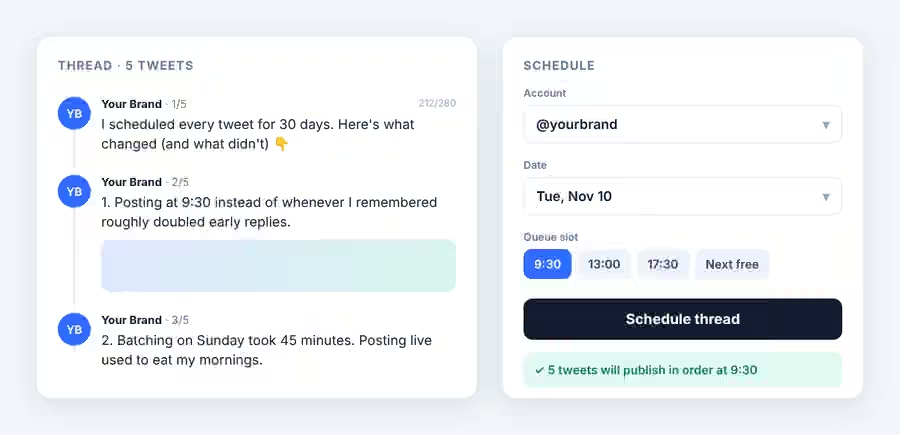
One habit we’d recommend: write threads on a weekend afternoon when you have time to think, then schedule them for weekday mornings. Writing a good thread and posting it at the right time are two different jobs, and they rarely happen at the same moment.
How to schedule tweets from your phone
The X app for iPhone and Android doesn’t offer scheduling as a documented feature, and X Pro doesn’t run on mobile at all. Some Premium users report seeing a schedule option in the app. Don’t build a routine around it.
You have two workarounds. The first is opening x.com in your phone’s browser instead of the app (or switching the browser to desktop mode), where the composer usually keeps its calendar icon. It’s fiddly but it works.
The second is SchedPilot in your mobile browser. The full dashboard works on any modern phone, so you can queue a tweet from the airport and have it publish at 9:30 the next morning. A dedicated mobile app is on the way.
Free tweet scheduler vs. SchedPilot
| X’s built-in scheduler | SchedPilot | |
|---|---|---|
| Price | Free (X Pro needs Premium+, $40/mo) | Paid plans, 7-day free trial |
| Single tweets with media | Yes | Yes, up to 4 images, GIFs or video |
| Threads | Unreliable outside X Pro | Yes, up to 25 tweets with preview |
| Multiple X accounts | One at a time | All in one dashboard |
| Calendar view | No | Yes, drag-and-drop |
| Queue and time slots | No | Yes |
| Recycling evergreen tweets | No | Yes |
| Team approvals | No | Yes (Enterprise plan) |
| From your phone | Mobile browser only | Mobile browser |
| Other networks | X only | LinkedIn, Threads, Bluesky, Instagram, TikTok and more |
If you run one personal account and tweet three times a week, stick with X’s free tweet scheduler. It costs nothing and does the job. Once you’re managing a brand handle alongside your own, posting threads, or cross-posting the same idea to LinkedIn and Bluesky, the native tool turns into a lot of tab-switching and you’ll want everything in one place.
Why schedule tweets at all
Mostly because consistency beats bursts on X. An account that posts twice a day for a month will usually outgrow one that posts fifteen times on a Sunday and then goes quiet. Scheduling is how normal people with jobs keep that rhythm.
Time zones are the other reason. If you’re in Bucharest and half your audience is in New York, their 9 a.m. is your 4 p.m., and their evening scroll happens after you’ve gone to bed. Scheduling lets you show up in both windows without staying up for them. Our guide to the best time to post on Twitter has the hour-by-hour data, and the best time to post calculator will work it out for your audience.
It also separates writing from publishing. You write better in one focused batch than in fifteen interrupted bursts, and you catch typos more easily when you reread a week’s worth of tweets in one sitting. X does let Premium users edit posts for a short window, but most accounts still can’t fix a typo once it’s out.
Habits that make scheduled tweets work
Don’t schedule everything
This is the one people get wrong. A fully scheduled account reads like a broadcast channel, and X rewards conversation. Our rule of thumb is to schedule the backbone (threads, announcements, links to new content, your best evergreen takes) and post reactions, replies and quote tweets live. If 60 to 70 percent of your tweets are scheduled and the rest happen in the moment, followers won’t notice the difference. If it’s 100 percent, they will.
And whatever you schedule, show up for the replies. A thread that publishes at 9:30 while you’re unreachable until noon loses most of the early conversation that gets it pushed further.
Start with fixed time slots
Three slots a day is a good starting point, for example 9:30, 13:00 and 17:30 in your audience’s main time zone. Set them up as a queue, fill them, and stop deciding when to post every single tweet. After 30 days, open your analytics and move the slot that underperforms. That’s a better method than any generic “best time” chart, including ours.
Batch once a week
Block 45 minutes on the same day each week. Write the week’s tweets and one or two threads, schedule them, done. If you’re working with a big content backlog or a client calendar, bulk scheduling from a CSV saves even more time.
Pause the queue when the news turns
A cheerful product tweet going out during a major breaking news event looks tone-deaf, and it’s entirely avoidable. Know where your pause button is before you need it.
Recycle your best tweets, but rewrite them
Most of your followers never saw your best tweet from two months ago. Bringing it back is smart. Posting the identical text again is not, since X can treat exact duplicates as spam. Change the first line, swap the image, or turn it into a short thread. Every six to eight weeks is a reasonable gap for evergreen content.
Get a second pair of eyes on brand accounts
If you post for a company or for clients, have someone approve tweets before they’re scheduled. It catches the wrong link, the wrong account, and the joke that only seemed funny at 11 p.m. Our piece on social media approval workflows covers a simple setup, and if you’re juggling several handles, read how to manage multiple social media accounts.
Prefer to let AI do the drafting? You can schedule tweets straight from ChatGPT through SchedPilot’s connector, which is handy when you want ten variations of a launch tweet queued across the week without opening the dashboard at all.
Related posts
7 Best Tweet Schedulers in 2026, With the Prices They Charge Right Now
November 1, 2026
Best Twitter (X) Analytics Tools in 2026 (Tested & Compared)
July 5, 2026
How to Make Money on Twitter (X) in 2026: 11 Proven Ways
June 20, 2026
How to Make Your Twitter (X) Account Public — In Under 30 Seconds
April 17, 2026